








Free AI Video Enhancer Online — No Login or Signup

Try a free AI video enhancer online with no login or signup for a short preview. Compare detail, motion, 2x, and 4x options before downloading.

BeforeAfter
Mode
Verified output
Upload a video to see its verified output options.

Explore the toolkit

All Tools

Jump straight into a focused workspace for improving video or image quality.

Compare the Details That Matter in Every Frame

Use an AI video enhancer to review faces, low-light scenes, and fast movement with a clear before-and-after reference. The video enhancer free preview helps you test a short section without an account, while a 4K video enhancer workflow should always be judged by the source dimensions and the actual exported resolution.

Inspect Faces, Hair, and Natural Texture - After
Inspect Faces, Hair, and Natural Texture - Before
Before
After

Inspect Faces, Hair, and Natural Texture

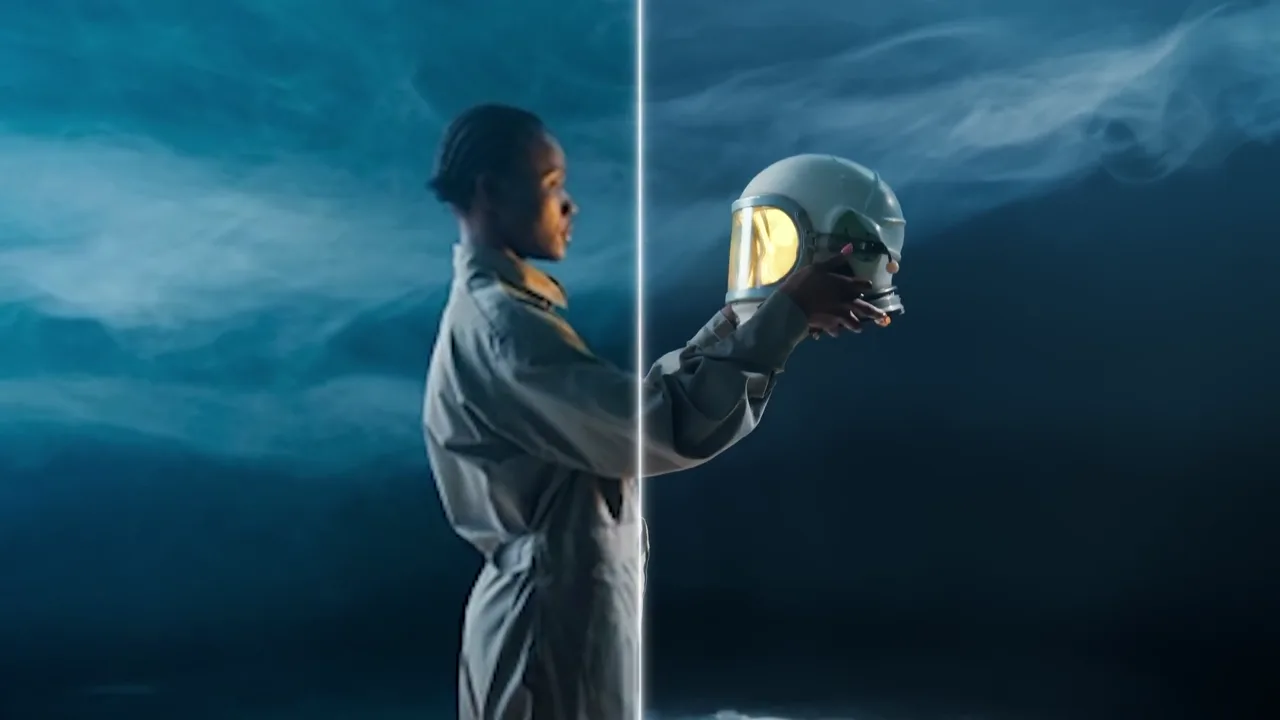
A portrait is a demanding test for an AI video enhancer because viewers notice artificial skin, hard edges, and unstable hair immediately. Compare both sides at normal size, then look closer at eyelashes, individual strands, jacket texture, and the transition between the subject and the background. Favor consistent detail across the frame over a single sharp-looking still.

Review Noise, Reflections, and Dark Gradients - After
Review Noise, Reflections, and Dark Gradients - Before
Before
After

Review Noise, Reflections, and Dark Gradients

The video enhancer free path is useful for checking a representative night scene before committing to a longer workflow. Watch dark walls, wet pavement, colored light, and fine bicycle edges. A useful result reduces distracting blocks and color noise without crushing shadow detail, clipping every highlight, or making reflections look painted.

Check Moving Edges Before You Target 4K - After
Check Moving Edges Before You Target 4K - Before
Before
After

Check Moving Edges Before You Target 4K

A 4K video enhancer cannot turn every small or damaged source into native 4K detail. Use the running frame to inspect limbs, shoes, fabric, grass, railing lines, and the horizon. If the selected 4x option creates a larger frame, confirm the delivered pixel dimensions separately and watch the complete moving sequence for halos, shimmer, or duplicated texture.

A Focused Review Instead of a Vague Promise

Choose a representative source, use the available controls, and judge the complete result at the size your audience will see.

Source-Aware Inspection

An AI video enhancer works from the information already present in the clip. Check focus, compression, motion, and source dimensions first so you can compare a realistic improvement instead of expecting missing objects or text to be reconstructed perfectly.

Consistent Frame Review

Use an AI video enhancer on a section containing faces, text, texture, and movement. Watch the whole preview at normal speed because flicker, edge shimmer, and changing sharpness may be invisible when you inspect only one paused frame.

No-Account Short Preview

The video enhancer free option provides a short Lite preview without login. It is designed for quick evaluation, while complete-video processing and Ultra controls follow the account, allowance, file, and credit rules displayed inside the existing workspace.

Clear Free-Mode Boundaries

Keep the video enhancer free test focused on the most difficult five seconds of the source. A short sample with small text, dark gradients, or fast movement gives you more useful evidence than an easy scene with little visible detail.

Resolution You Can Verify

A 4K video enhancer label describes the intended high-resolution workflow, not a guarantee that every input becomes true 4K. Inspect the source, choose 2x or 4x where available, and verify the output dimensions after processing.

Practical 4K Expectations

Use a 4K video enhancer when a larger delivery frame is useful and the source has enough stable detail to support it. Resolution, perceived clarity, codec quality, and bitrate are separate factors, so evaluate all of them before publishing.

Three-step workflow

Upload, Compare, and Export With Evidence

The current workspace keeps the process direct: choose a valid source, review the settings shown for the selected mode, and inspect the result before download.

1

Choose a Representative Clip

Start the AI video enhancer with a clip that includes the real problem you want to solve. Confirm that the preview plays, then note the source format, size, duration, and dimensions. A difficult but representative segment makes the comparison meaningful.
2

Run the Appropriate Preview

Start with the video enhancer free Lite preview when you want a no-login check of a short section. Use the complete or Ultra path only when its visible sign-in, allowance, file, scale, and credit requirements fit your task.

3

Verify Scale and Playback

Treat the 4K video enhancer goal as something to verify rather than assume. Compare motion at normal speed, pause on difficult edges, inspect the exported dimensions, and watch the downloaded file on the screen size intended for delivery.

Practical answers

Questions to Answer Before You Enhance

Review the limits, resolution terms, and access rules that matter before you choose a source or export a result.

What can an AI video enhancer improve?

An AI video enhancer can sharpen perceived detail, reduce noise, soften compression artifacts, and enlarge frames. Results still depend on focus, motion, bitrate, lighting, and source resolution, so compare a moving segment rather than one paused still.

Is this video enhancer free with no login?

The video enhancer free Lite preview runs without login for a short supported section. Complete processing and Ultra mode follow the sign-in, allowance, format, file, and credit requirements displayed directly in the workspace.

Does a 4K video enhancer always create true 4K?

A 4K video enhancer does not guarantee 3840×2160 from every source. Final dimensions depend on the input and selected scale. A 4x option enlarges the frame mathematically, so verify the downloaded file properties.

Can an AI video enhancer recover missing details?

An AI video enhancer can estimate cleaner edges and textures but cannot reliably recover information the camera never captured. Severe defocus, clipped highlights, blocked shadows, hidden text, and long motion trails may remain visible.

Can I keep the video enhancer free for a complete clip?

The video enhancer free experience includes the short no-login preview. Complete processing follows the current sign-in and shared allowance rules shown in the tool. Test the hardest segment before using more time or credits.

Is 4x scaling the same as a 4K video enhancer output?

A 4K video enhancer target and 4x scaling are not identical. Scaling changes each source dimension by a factor, while 4K names a delivery frame. Check both source and completed dimensions because clarity and pixel count also differ.

How should I compare an AI video enhancer result?

Play the original and AI video enhancer result at normal speed. Inspect faces, captions, fabric, reflections, gradients, and fast edges across consecutive frames. Watch for excessive sharpening, crawling texture, halos, color shifts, or flicker.

Does the video enhancer free preview upload my complete video?

The video enhancer free Lite workflow is a short browser preview; other modes use their own processing path. Review the active controls and privacy terms, avoid confidential footage, and process only material you are authorized to use.

When should I use a 4K video enhancer?

Use a 4K video enhancer when delivery needs a larger frame and the source retains stable detail. Test text, faces, motion, and gradients first, then decide whether 2x or 4x produces the more natural result.

Does an AI video enhancer change the frame rate?

An AI video enhancer focused on clarity should not be assumed to create extra motion frames. Resolution enhancement and interpolation are different tasks, so check the downloaded file properties whenever frame rate matters to your edit.

Why does the video enhancer free workflow use a short preview?

A short video enhancer free preview lets you inspect a revealing section quickly. Choose the hardest combination of movement, detail, text, noise, or lighting. A stable result gives stronger evidence before complete processing.

What source works best with a 4K video enhancer?

A 4K video enhancer works best with an in-focus source that retains detail across motion. Start from the earliest-generation file available instead of a repeatedly downloaded copy; compression and missing focus still limit the result.

For current handling and account terms, review the Privacy Policy and Terms of Service.