




AI Video Upscaler Free — No Login Required

Use an AI video upscaler free online for short previews. Improve supported clips with no login, compare details, and download results when ready.

BeforeAfter
Mode
Verified output
Upload a video to see its verified output options.

See What a Video Upscaler Changes Frame by Frame

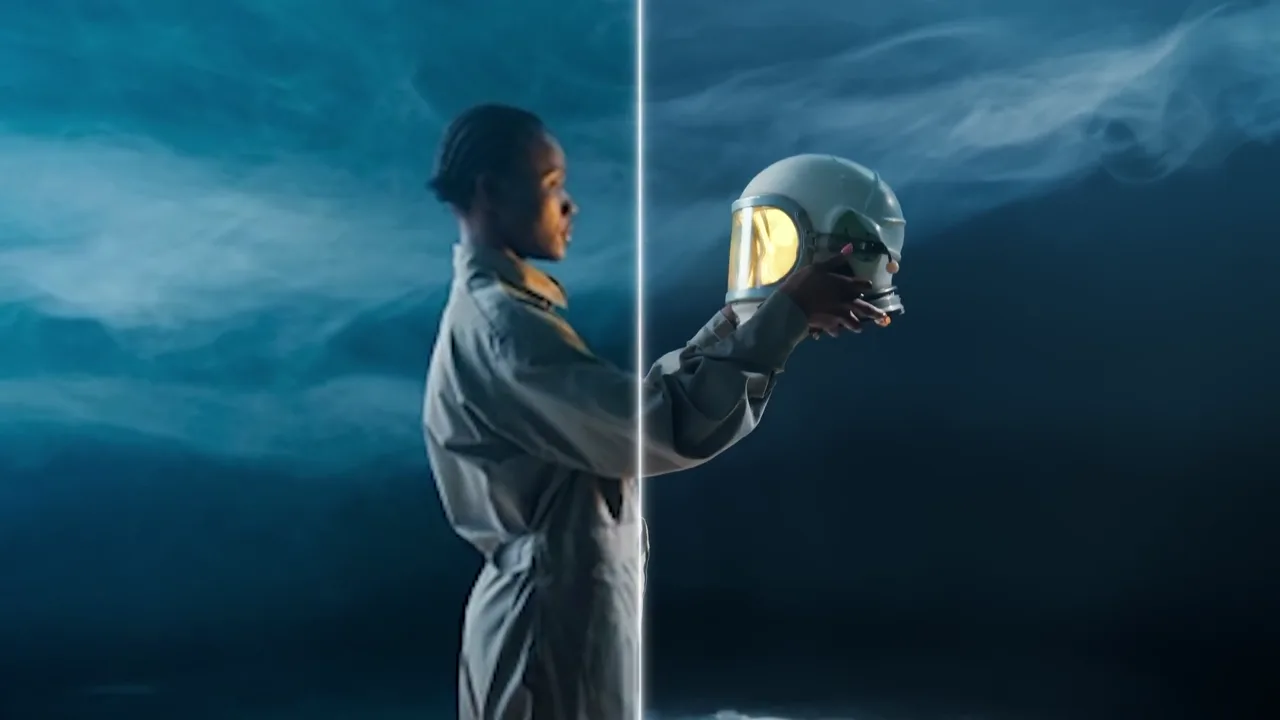
A useful AI video upscaler should make detail easier to inspect without hiding the limits of the source. Drag each comparison to examine realistic portrait texture, product edges, and motion before choosing a workflow.

Review Faces, Hair, and Fabric at a Natural Scale - After
Review Faces, Hair, and Fabric at a Natural Scale - Before
Before
After

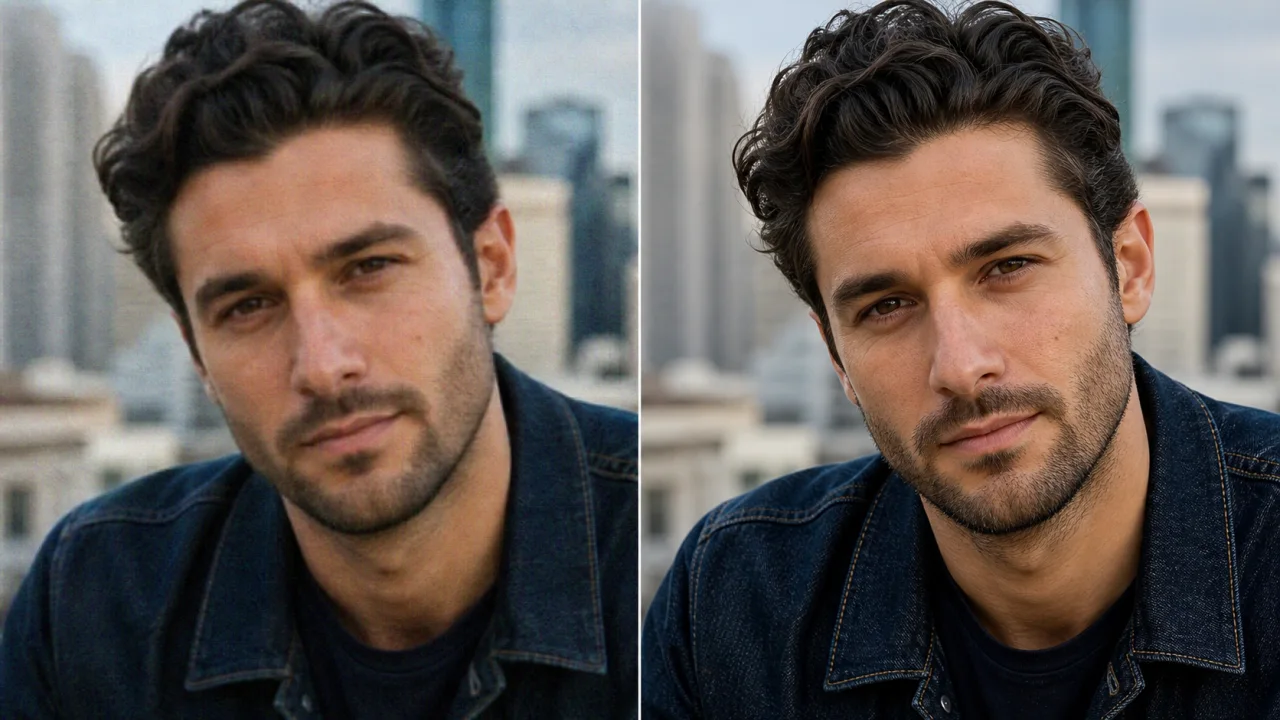
Review Faces, Hair, and Fabric at a Natural Scale

Portrait footage quickly reveals whether a video upscaler adds useful definition or simply makes edges look harsh. This AI video upscaler example keeps the same face, window light, plants, and woven jacket on both sides. Compare loose hair, skin texture, collar edges, and background leaves. If you are testing a video upscaler free of login requirements, begin with a short representative clip and judge the moving result at the size your audience will actually see.

Check Fine Materials Instead of Trusting a Larger Number - After
Check Fine Materials Instead of Trusting a Larger Number - Before
Before
After

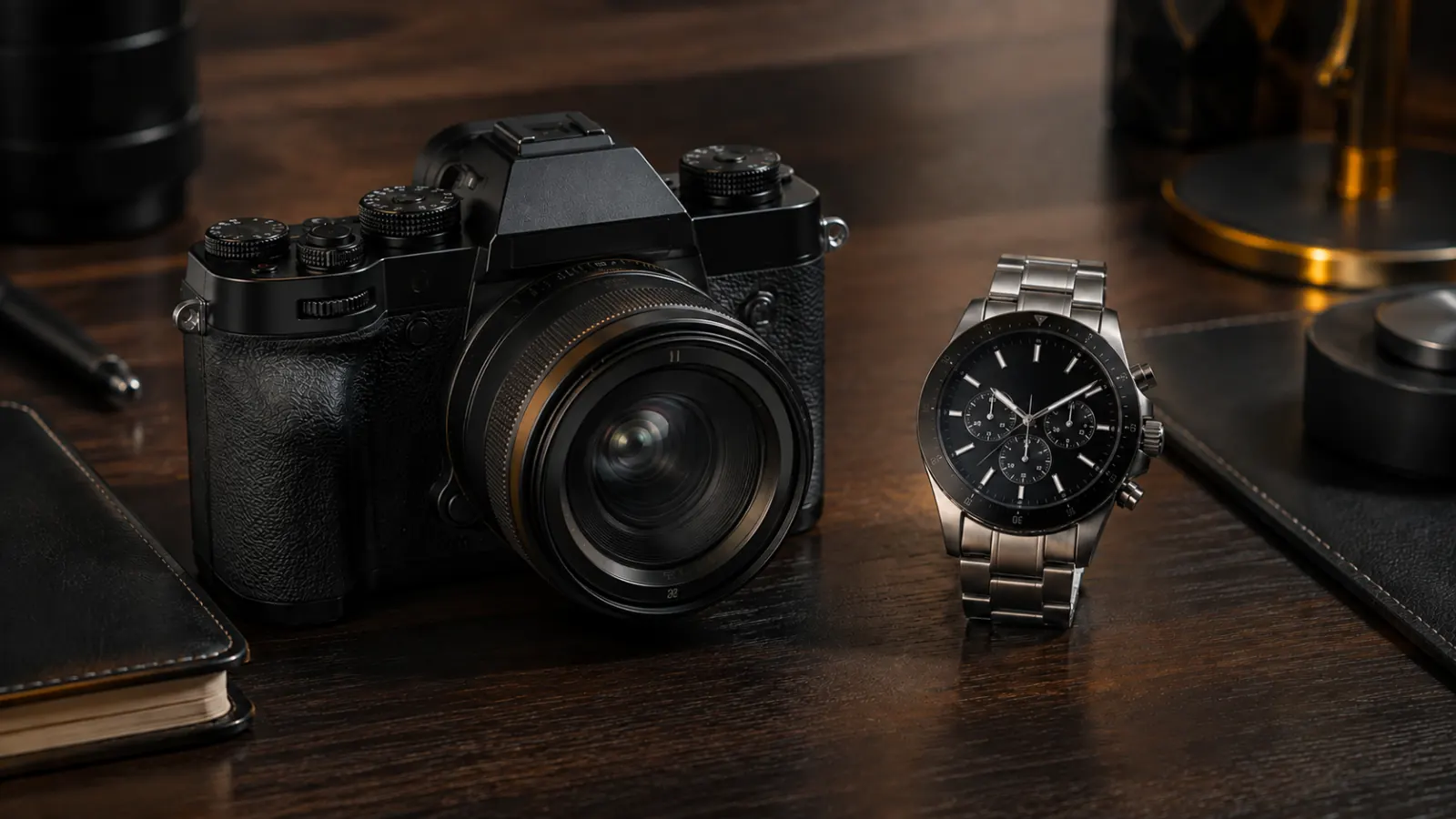
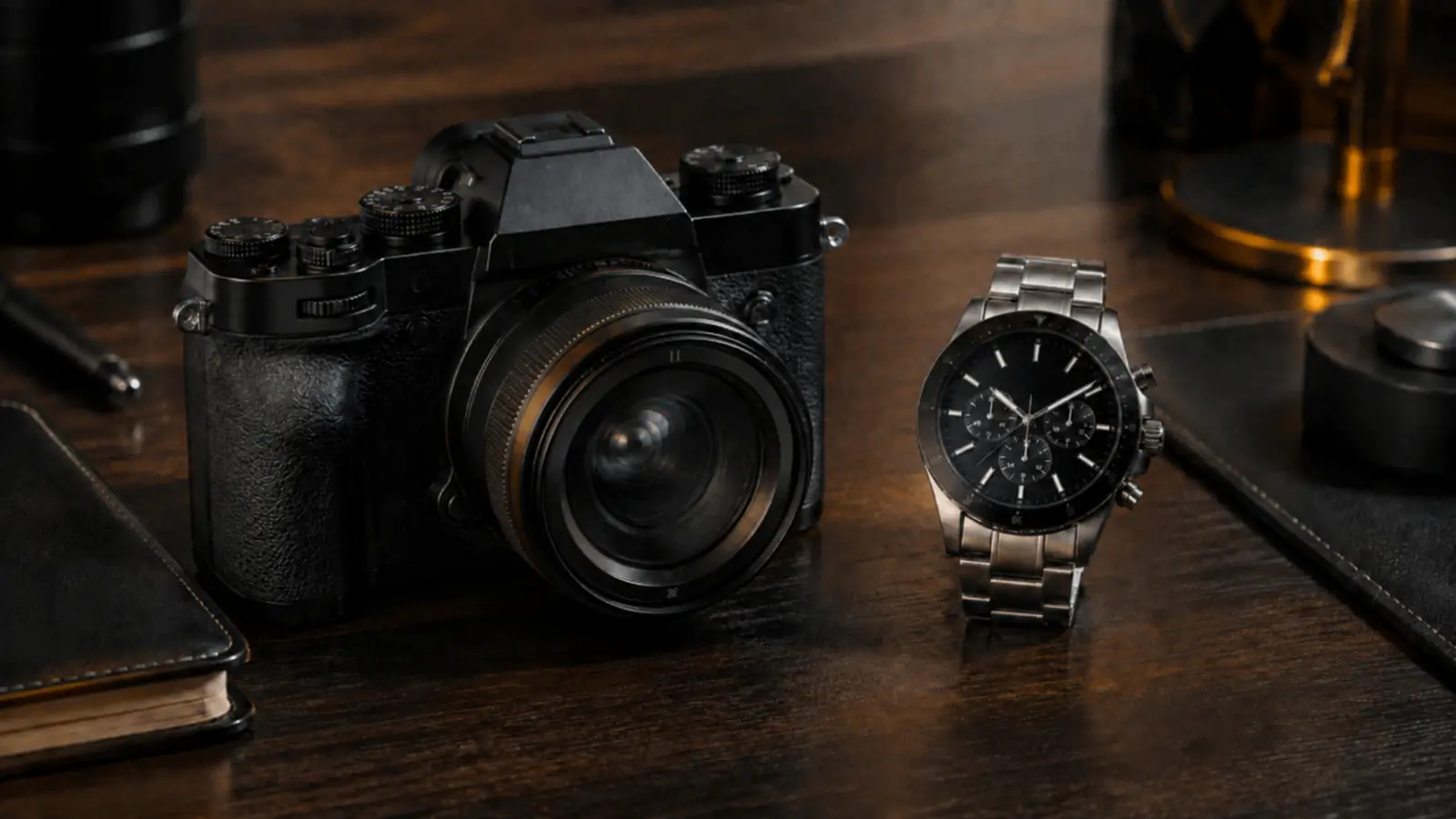
Check Fine Materials Instead of Trusting a Larger Number

A product frame gives a video upscaler several demanding details: brushed metal, glass reflections, leather grain, small controls, and dark gradients. The AI video upscaler comparison uses identical unbranded objects so you can focus on surface quality rather than a changed composition. A video upscaler free preview is most helpful when you inspect curved edges and shadow transitions closely, then step back and decide whether the complete frame still looks natural.

Inspect Moving Edges Across the Whole Scene - After
Inspect Moving Edges Across the Whole Scene - Before
Before
After

Inspect Moving Edges Across the Whole Scene

Motion is where a video upscaler must balance clarity and continuity. In this cycling frame, compare wheel spokes, jacket seams, pavement, foliage, and the transition between a sharp rider and a moving background. An AI video upscaler can present those details more clearly, but the final review should happen during playback. Use the video upscaler free preview to find flicker, unstable edges, or compression before you commit to a longer export.

A Video Upscaler Workflow Built for Careful Review

Use the AI video upscaler to compare supported clips, choose an available output path, and decide from the visible result rather than from resolution labels alone.

Start Without a Login

Open the video upscaler free preview, select a supported short clip, and inspect the source before processing. The no-login path is designed for a quick first look, so you can decide whether the footage is worth enhancing before creating an account.

Compare the Same Content

A useful video upscaler comparison keeps attention on the original shot and its enhanced result. Review faces, textures, small objects, gradients, and movement at matching timestamps instead of comparing unrelated showcase frames.

Choose a Practical Scale

The AI video upscaler presents the output options available for the selected workflow. Choose the smallest scale that solves the delivery problem; a larger frame does not automatically contain more trustworthy visual information.

Keep Audio With the Clip

The video upscaler workflow is intended to preserve the viewing experience while the picture is processed. Always play the downloaded result and confirm that sound, timing, duration, and picture remain aligned before publishing.

Review Before Downloading

An AI video upscaler can make edges and textures easier to see, but every source has limits. Watch the full result at normal speed to catch flicker, ringing, unstable detail, or compression that a paused frame may hide.

Move From Preview to Full Processing

Use the video upscaler free path for a short evaluation. If the preview supports your goal, sign in only when the complete-video workflow or an Ultra output option is needed, and review the displayed limits before starting.

Three-step workflow

How to Use the AI Video Upscaler

Keep the first test small, compare the parts of the frame that matter, and download only after the video upscaler result holds up during playback.

1

Choose a Representative Source

Upload a supported clip that includes the hardest detail in the project: a face in motion, small product edges, textured clothing, subtitles, foliage, or a compressed gradient. Starting with a representative section makes the video upscaler free preview more informative than testing an unusually clean frame.

2

Run the Available Preview

Select the no-login path and let the AI video upscaler prepare the short preview. Keep the tab open, avoid changing the source during processing, and use the displayed state rather than repeatedly submitting the same file.

3

Compare, Then Save

Watch the original and result at the intended display size. Check motion, skin, lettering, thin edges, dark areas, and audio timing. Download from the video upscaler only when the improvement stays consistent across the clip instead of looking convincing in one still image.

Practical answers

Video Upscaler Questions Before You Process

Review formats, realistic quality limits, privacy, audio, and the video upscaler free preview before choosing a complete workflow.

Is the AI video upscaler free to try without login?

Yes. The video upscaler free preview lets you evaluate a short supported clip without logging in. It is intended for a focused quality check rather than an unlimited full-video service. Select a representative section, wait for the result, and compare it at normal playback speed. If you later need complete-video processing, the workspace explains when sign-in is required. This approach lets the AI video upscaler demonstrate the workflow before you decide whether the longer path fits the project.

What does a video upscaler change in a low-resolution clip?

A video upscaler increases output dimensions and may improve the presentation of edges, textures, and compressed detail. It does not recover an exact record of information that the camera never captured. Use the AI video upscaler to compare the same scene before and after processing, then look for believable continuity across frames. The video upscaler free preview is especially useful for checking whether hair, text, faces, and moving outlines remain stable rather than becoming unnaturally sharp.

Which files work with the video upscaler free preview?

The current video upscaler free workflow accepts the formats listed inside the Lite workspace and validates file size, duration, dimensions, and the readable video track. Browser codec support can vary even when a container extension looks familiar. If a clip is rejected, convert a copy to a common MP4 format or trim a shorter sample before trying again. The AI video upscaler displays the relevant checks, so follow the current workspace rather than assuming every file with a familiar name can be decoded.

Can an AI video upscaler turn every clip into true 4K?

An AI video upscaler can create a larger output when that scale is available, but pixel dimensions alone do not guarantee true captured detail. Strong blur, missed focus, clipping, heavy compression, and obscured objects remain source limitations. Evaluate the video upscaler result at the final viewing size and watch difficult motion from beginning to end. A video upscaler free test gives you evidence from your own footage before you choose a larger output or a full processing option.

How should I judge an AI video upscaler result?

Compare identical timestamps and concentrate on the details that matter for delivery. Faces should remain natural, thin edges should not shimmer, dark gradients should not break into obvious bands, and small objects should not change shape between frames. Play audio as well as video to confirm timing. The video upscaler free preview should be reviewed at normal speed and again on a few paused frames. Choose the video upscaler output only when the improvement remains consistent rather than depending on one attractive moment.

Is a video upscaler useful for old or compressed footage?

A video upscaler may improve the presentation of older exports, archived clips, and media that has been compressed by social platforms. Results depend on what remains in the source. Dust, severe motion blur, damaged frames, and blocked shadows may still be visible. Start the AI video upscaler with a section containing faces, texture, movement, and contrast. The video upscaler free preview helps you decide whether the result is cleaner enough for the intended screen without committing the entire recording.

Can I use the AI video upscaler for social media clips?

Yes, when the source and output comply with the platform and you have permission to process the footage. A video upscaler can help prepare an earlier export for a larger layout, but social platforms may compress it again after upload. Use the video upscaler free preview to inspect captions, faces, product edges, gradients, and fast cuts. Export only after the AI video upscaler result looks natural at the actual mobile or desktop size your audience is likely to use.

Why can a video upscaler make some edges look too sharp?

Enhancement can emphasize contrast around an existing boundary. On difficult footage, that may appear as ringing, halos, brittle hair, or unstable texture. Watch the video upscaler result through movement instead of judging only a still frame. If an AI video upscaler output looks artificial, use a smaller available scale or begin from a less compressed source. A video upscaler free comparison makes these artifacts easier to identify before you spend time processing a longer version.

Will the video upscaler keep the original audio?

The intended video upscaler workflow keeps the clip usable as a video, but you should always verify the actual completed file. Play the beginning, a middle section, and the end while watching for lip-sync or timing changes. The AI video upscaler focuses on picture enhancement; it is not an audio restoration tool. After using the video upscaler free preview, confirm that the result contains the expected sound and duration before deleting, moving, or replacing any source file.

Is it safe to upload private footage to a video upscaler?

Only process footage you own or are authorized to use, and avoid sensitive personal, confidential, or rights-restricted material. Read the current Privacy Policy before uploading anything that requires special handling. For an initial technical check, choose an ordinary non-sensitive sample. The video upscaler free preview can demonstrate the workflow without using a valuable master file. When using the AI video upscaler, retain your original locally and review the downloaded result before sharing it with anyone else.

When should I move beyond the video upscaler free preview?

Move beyond the video upscaler free preview only after the short result answers the important quality questions. Confirm that faces, motion, fine texture, gradients, and sound remain stable. Then read the workspace limits for complete-video or Ultra processing, including any sign-in, file, scale, or credit requirements shown at that time. The AI video upscaler preview is a decision step: it helps you avoid processing a full clip when the source is too damaged or the visual change does not support the final use.